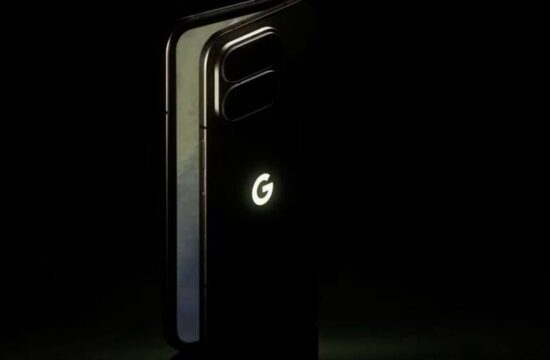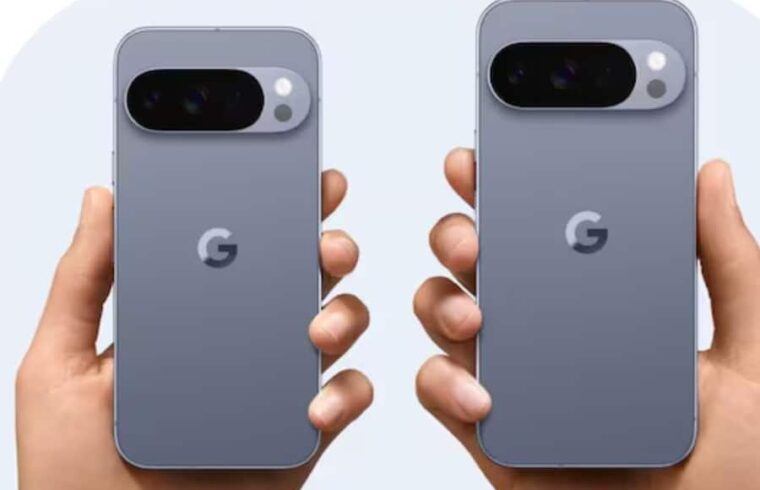
Hey there, tech enthusiast! Have you recently got your hands on the stunning new Google Pixel 10? Packed with groundbreaking AI features, a camera that could make a professional photographer jealous, and a performance boost that feels like pure magic, it’s no wonder you’re excited. Google has truly upped its game, placing the Pixel 10 series directly in the ring with the reigning champions – your trusty iPhone. But here’s the burning question on everyone’s mind: is switching from an iPhone to a Pixel 10 going to be a complete nightmare?
For years, the thought of leaving the Apple ecosystem felt like trying to untangle a spaghetti junction of data, photos, and precious memories. It often conjured images of lost messages and inaccessible apps. Well, my friend, it’s time to set those fears aside! Google has genuinely engineered a migration process so smooth, so intuitive, that you might just wonder why you ever hesitated. Seriously, you can bring all your cherished photos, lively chats, and essential apps over to your brand-new Pixel 10 in about 30 minutes. Yes, you read that right – thirty minutes!
Your Pixel 10 Adventure Begins (Even Before It Arrives!)
Did you order your shiny new Pixel 10 series directly from the Google Store? If so, you’re already one step ahead! Google often provides a helpful head start, sending you step-by-step instructions and a preparatory guide even before your device lands on your doorstep. Think of it as your pre-flight checklist for a smooth digital journey.
The Smart Setup Secret: Your Google Account
The tech giant’s genius lies in proactive preparation. They suggest backing up your most precious essentials – everything from your irreplaceable photos and videos to those all-important passwords and your digital wallet items – directly to your existing Google Account. Why is this so crucial? Because it ensures absolutely nothing is left behind! By taking these proactive steps, when your Pixel finally arrives, the setup isn’t just fast; it’s an absolute breeze, going off without a hitch. It’s like setting up a new home with all your furniture already moved in and arranged!
The Seamless Migration Process: iPhone to Pixel 10
Alright, let’s get down to business. You’ve got your new Pixel 10, brimming with potential. You’ve got your old iPhone, a treasure trove of your digital life. How do we make the magic happen?
Step 1: Prepare Your iPhone for the Journey
- Power Up! First things first, ensure your iPhone is
fully charged. You don’t want your phone dying mid-transfer, do you? It’s like embarking on a road trip with an empty fuel tank – a recipe for disaster! - Back it Up! This is absolutely critical. Back up all your important data to iCloud. We’re talking contacts, those priceless photos and videos, notes, messages, and more. While the Pixel will directly pull much of this, having an iCloud backup is your safety net, your digital insurance policy, ensuring every last byte of your digital life is safe and sound.
- Temporarily Disable iMessage and FaceTime. This is a common hiccup for iPhone users switching to Android. To prevent missed messages and ensure smooth communication,
temporarily turn off iMessage and FaceTime. You can do this in your iPhone’s Settings under ‘Messages’ and ‘FaceTime’. This tells Apple’s servers that your number is no longer associated with iMessage, rerouting texts back to standard SMS/MMS.
Step 2: Power On and Connect Your Pixel 10
- Awaken Your Pixel. Power on your brand-new Pixel 10. Follow the initial on-screen prompts.
- Join the Network. Connect your Pixel to a stable Wi-Fi network. This is crucial for downloading apps and ensuring a smooth data transfer.
- Google Account Login. Now, sign in with your Google Account. Remember how we talked about backing everything up there? This is where that preparation truly pays off!
Step 3: The Physical Connection: Between Worlds
- Cable Connection is Key. When prompted, connect both phones. Google provides a special “Quick Switch Adapter” cable right in your Pixel 10 box –
make sure you use it! This isn’t just any old USB cable; it’s designed for this very purpose. - Plug In! Plug your iPhone into your Pixel 10 using that special cable. It might feel a little like connecting two brains together, ready to share knowledge.
Step 4: The Data Transfer: The Moment of Truth
- Initiate Copying. On your Pixel device, you’ll see a clear option to “Copy data.” Go ahead and select it!
- Choose Your Treasures. This is where you get to be selective! Your Pixel will present you with options for what you want to transfer. You can choose to bring over:
Photos and videos (your entire visual history!)Contacts (stay connected with everyone)Messages and iMessages (yes, even those group chats!)WhatsApp chats (phew, no need to lose those precious conversations)Notes (your digital scribbles, safe and sound)Call history (who called when)Supported apps (many of your favorites will make the leap)
Take a moment here to deselect anything you genuinely don’t need, or simply transfer everything. It’s entirely up to you!
- The Waiting Game. Once you’ve made your selections, simply wait for the transfer to complete. As we mentioned, this entire process usually takes around
30 minutes , though larger data libraries might require a bit more patience. Grab a coffee, stretch your legs, and before you know it, your Pixel will be ready to roll!
Welcome Home: What Happens After the Transfer?
Once the transfer is complete, your Pixel 10 isn’t just a new phone; it’s your familiar digital world, beautifully re-imagined on a stunning new device. Your photos will be in Google Photos, your contacts in the Contacts app, and your apps will start downloading. Some apps might require you to log in again, but the heavy lifting of moving the app data is done. It’s truly a testament to Google’s commitment to making the Android experience as welcoming as possible, even for long-time iPhone users.
Final Thoughts: Embracing Your Pixel 10 Future
So, there you have it! Switching from your iPhone to the incredibly capable Google Pixel 10 isn’t the daunting challenge it once was. With a little preparation and these straightforward steps, you can seamlessly transition to your new device and immediately start exploring all the innovative AI features, the phenomenal camera, and the smooth performance that the Pixel 10 series promises. Isn’t it amazing how far mobile technology has come, making complex migrations feel like a walk in the park?
Welcome to the future with your Google Pixel 10. We know you’re going to love it!